Let’s be honest. You open Instagram right now, and every third post is some kind of AI-generated image. People with massive 3D wings, couples with their names glowing on a neon sign in a jungle—it’s everywhere.
It’s cool technology. But let’s keep it real: 90% of those images look ridiculous. They look like plastic cartoons or bad video game screenshots.

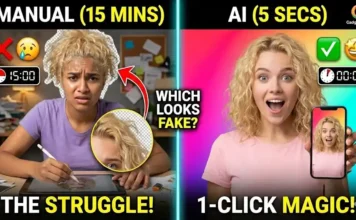
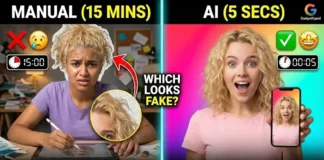
When I first started exploring ai photo editing, my results were embarrassing. The people looked like wax statues, not humans. Their skin was too perfect, and their eyes looked dead. It took me months of experimenting with prompts to figure out why my images screamed “FAKE!” while other creators were making stunning, photorealistic art.
Kya aapki AI photos bhi plastic jaisi lagti hain? Don’t worry.
Today, I’m sharing the 7 biggest mistakes that ruin your AI images and exactly how to fix them. Aaj hum seekhenge ki fake photo ko real kaise banaye.
Let’s turn that cartoon into a photograph.
7 AI Photo Editing Mistakes
Mistake 1: The “Plastic Skin” Effect
This is the number one giveaway of a newbie AI creator. AI models love perfection. Left to their own devices, they will generate humans with skin smoother than a polished marble floor. Real humans have pores, wrinkles, blemishes, and texture.
If your subject looks like they have a permanent beauty filter on max settings, it’s fake.
The Fix (Realism Hack): You need to force the AI to add imperfections. Stop just writing “beautiful girl” or “handsome man.” You need to add specific texture keywords to your prompt.
- Add these to your prompt: “natural skin texture, highly detailed skin, visible pores, slight imperfections, 8k resolution photograph.”
Mistake 2: Glowing & Oversaturated Colors
Why does almost every beginner AI photo look like it was taken inside a nuclear reactor? The colors are neon bright, highly saturated, and hurt your eyes.
Real life isn’t that colorful. Professional photography usually uses subtle color grading to create a mood, not a color explosion.
The Fix (Cinematic Tone): Tell the AI you want a movie look, not a cartoon look. You need to dampen those colors to achieve real ai photo editing.
- Add these to your prompt: “cinematic color grading, muted tones, moody lighting, realistic colors, film grain, Kodak Portra 400 film look.”
Mistake 3: Weird Fingers & Wonky Eyes
Ah, the classic six-finger hand or the lazy eye that looks in two different directions. We have all seen it. Nothing ruins a great image faster than a deformed hand resting on a shoulder.
While AI is getting better at hands, it still messes up frequently if you don’t give it clear instructions.
The Fix (Negative Prompting): This is harder to fix with just positive prompts. You need to use “Negative Prompts” (telling the AI what not to do). Most advanced tools have a separate box for this.
- Add these to your Negative Prompt box: “bad anatomy, deformed fingers, extra limbs, missing limbs, cross-eyed, blurry eyes, ugly, deformed hands, poorly drawn face.”
Mistake 4: Missing the “Camera Lens” Magic
Does your image look flat? Does it look more like a highly detailed digital painting than a photo taken with a camera? That’s because the AI doesn’t naturally understand focus and depth unless you tell it to.
A real photo taken with a DSLR camera usually has a sharp subject and a slightly blurred background (bokeh).
The Fix (Speak Photographer Language): You have to act like a photographer. You need to specify the gear to get that expensive camera look.
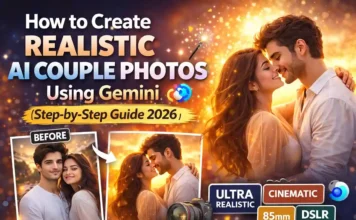
- Add these to your prompt: “shot on DSLR, 85mm lens f/1.8, shallow depth of field, sharp focus on eyes, bokeh background, canon photography.”
Mistake 5: The “Robot Pose”
Nobody stands perfectly still like a robot, staring dead ahead at the camera with a neutral expression. If the pose is too perfect and symmetrical, our brain immediately registers it as fake.
Real life is messy, candid, and asymmetrical.
The Fix (Go Candid): Stop asking for a “portrait.” Ask for a moment caught in time.
- Add these to your prompt: “candid shot, natural pose, looking away from camera, caught in motion, documentary style photograph, unposed.”
Mistake 6: Ignoring Light Direction
Lighting is everything in photography. In many fake AI photos, the lighting makes no sense. Maybe the background sun is setting behind them, but their face is brightly lit from the front like they are standing in front of a studio light. It looks disjointed.
The Fix (Define the Source): Be specific about where the light is coming from to ground the subject in the scene.
- Add these to your prompt: “golden hour sunlight from side, dramatic window light, volumetric fog light, soft cinematic lighting, Rembrandt lighting.”
Mistake 7: Overloading the Prompt with Junk
Sometimes, trying too hard makes it worse. I’ve seen prompts that are 500 words long, listing every single detail like “wearing a red shirt with 3 buttons and blue jeans with a small tear on the left knee…”
When you give the AI too many conflicting instructions, it gets confused and produces a messy, generic image.
The Fix (Keep it Simple & Focused): Focus on the vibe, the lighting, and the camera style first. Let the AI fill in the minor details naturally. A shorter, specific prompt often beats a long, confusing one.
Pro-Level Realism Prompts
Want that ultra-realistic look you see from top creators? Many people search for styles similar to top editors (like the gritty realism seen in searches for ai photo editing rajan editz). It’s all about texture and lighting.
Here are two ready-to-use bing image creator prompts to get you started on the path to realism:
Prompt 1: The Gritty Realistic Portrait
“Candid portrait photograph of a young Indian man with a stubble beard on a busy Mumbai street during evening, natural skin texture, sweat pores visible, looking away from camera, shot on Sony A7IV 85mm lens, cinematic muted colors, shallow depth of field, blurred crowd and auto rickshaws in background, warm practical city lights.”
Prompt 2: The Cinematic Atmospheric Shot
“Documentary style photograph of an old woman sitting by a dusty window, highly detailed wrinkled skin, soft natural light from window, film grain, shot on analog film camera, realistic atmosphere, clutter in the room, moody tone.”
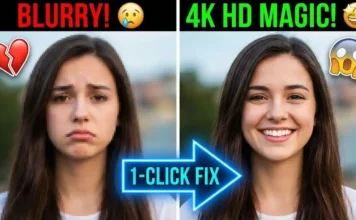
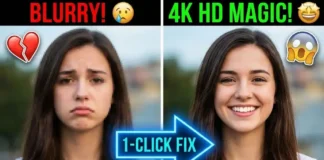
Bonus Creator Tip: Agar aapne mere prompts use karke ek perfect, realistic AI photo generate kar li hai (jaise Bing Image Creator se), toh aapko pata hoga ki in free tools ki image quality thodi low (1024×1024 resolution) hoti hai. Zoom karne par ye blur ho sakti hain. Agar aap in photos ko bilkul 4K DSLR level par sharp karna chahte hain, toh make sure to read my complete guide on the [5 Best Free AI Image Upscalers 2026: Convert Low Quality to 4K]. Ye combo aapki AI editing game ko next level par le jayega!
FAQs: Your Questions Answered
Ans: The secret is in the camera terminology. Always include “Shot on DSLR,” name a specific lens (like “50mm lens”), and insist on “natural skin texture” and “shallow depth of field.” These four keywords change the game.
Ans: Currently, Bing Image Creator (which uses DALL-E 3) is hands down the best free tool for generating realistic images if you use the right prompts. Midjourney is better, but it is paid.
Conclusion
Realism isn’t about one magic word; it’s about the combination of lighting, texture, and camera angle.
The biggest secret to real ai photo editing is embracing imperfection. Don’t try to make everything perfect. Real life is gritty, messy, and imperfect. Add that grit to your prompts, and watch your images come to life.
Go try these tips on Bing Image Creator today and stop making plastic people!